App Store Connect MCP server for Claude Code, Codex, Cursor
SwiftSales includes an MCP server that runs on your Mac. It gives Claude Code, Codex, Cursor and other agents the App Store Connect API as tools, with your own key and your approval for anything that reaches App Review or your customers.
What it is
The Model Context Protocol (MCP) is how coding agents call outside tools. SwiftSales on your Mac is an MCP server for App Store Connect: your agent asks for something in plain words, calls a SwiftSales tool, and SwiftSales makes the App Store Connect API requests with your team’s key.
- Local. The server is a small helper inside SwiftSales. Your agent starts it on your Mac over standard input and output. There’s no hosted service in between and no account.
- Your key stays in SwiftSales. You import your App Store Connect API key into SwiftSales once. It’s kept in your Keychain, and the agent never sees it.
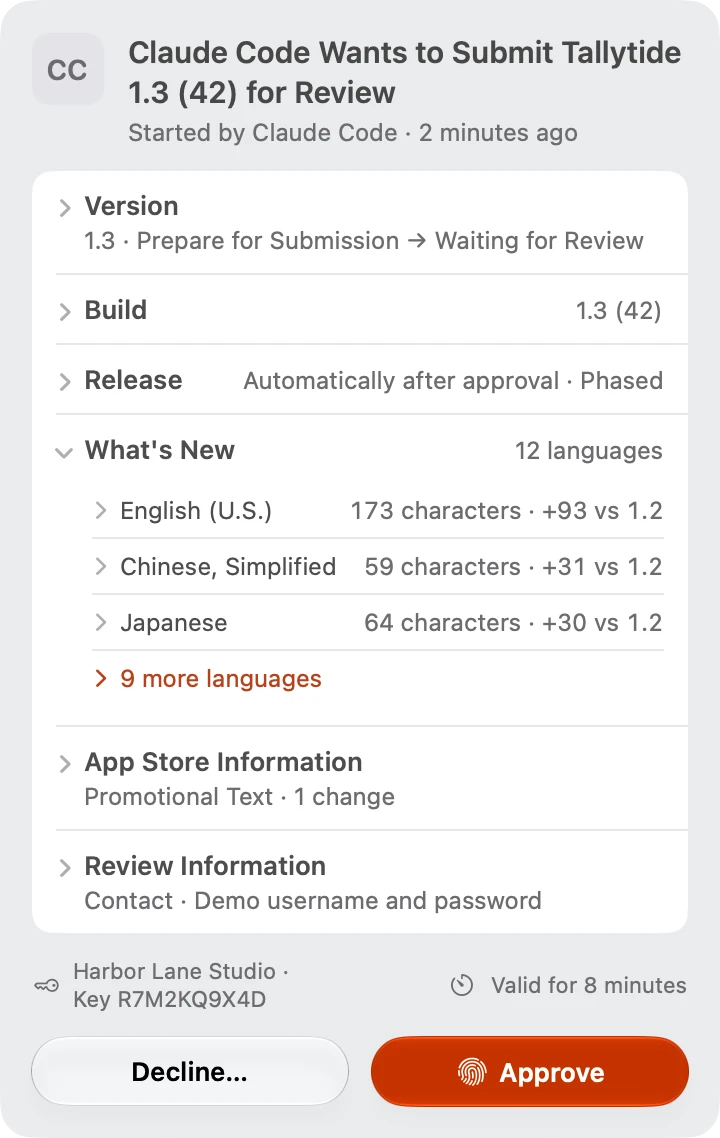
- You approve what counts. Each agent has an access level. Submitting for review, releasing, changing prices and anything that can’t be undone wait for your approval on your Mac.
What your agent can do with it
The tools follow the way you ship. Each area below lists a few of the tools your agent sees; What an agent can do describes every area.
| Area | Examples | Tools |
|---|---|---|
| Ship a version | Upload a build, fill in the App Store page, check readiness, submit, release | upload_build, prepare_release, set_whats_new, check_readiness, submit_for_review, release_now, phased_release |
| TestFlight | Groups and testers, What to Test, tester feedback | distribute_build, manage_beta_group, set_what_to_test, beta_feedback |
| Sell | In-app purchases, subscriptions, offers, price and availability | prepare_iap, apply_subscription, create_offer_codes, set_pricing |
| Promote | Custom product pages, in-app events, review replies | apply_product_page, apply_app_event, respond_to_review |
| Understand | Proceeds, downloads, subscriptions, reviews, App Store analytics | sales_summary, sales_since_release, reviews, analytics_report |
The server also offers prompts your agent can start from: ship (archive, upload and prepare a release), release, whats-new, create_iap and since-release. Tool errors carry a stable code and a nextStep, so the agent knows what to do next instead of guessing.
Access levels
Each agent starts at Read Only. You raise its level in SwiftSales › Settings › Agent Access, and the agent’s tool list changes right away.
sales_summary, release_status.prepare_release, set_whats_new.upload_build, apply_release.submit_for_review, release_now.You can also limit an agent to some of your apps. See Approvals and access levels.
Which key it uses
The server works with your team’s App Store Connect API key, the one you import when you connect your team.
- Reading sales and finance reports needs a key with the Finance role, or Sales with access to reports.
- Release work, TestFlight and in-app purchases need the App Manager role, on the same key or on a Release Key you add in SwiftSales on your Mac (Settings › Teams).
- When your key can’t do something, SwiftSales tells you which role it needs.
New to API keys? Create an App Store Connect API key walks through it.
Set it up
- Install SwiftSales on your MacmacOS 26 or later. Agent Access is part of Lifetime Premium and the 7-day free trial.
- Turn on Agent AccessSwiftSales › Settings › Agent Access.
- Add SwiftSales to your agentUse the button next to Claude Code, Codex, Cursor, Claude or Xcode. Show Path gives the path for any other MCP client.
For Claude Code, the command SwiftSales copies looks like this:
claude mcp add --scope user swiftsales -- <path to SwiftSales>/Contents/Helpers/SwiftSalesAgent.app/Contents/MacOS/SwiftSalesAgentEvery step, agent by agent: Connect an agent.
What stays on your Mac
SwiftSales connects only to Apple and the download links Apple signs, plus two exchange-rate services that get no information about you and our purchase server when it restores a SwiftSales purchase; no server of ours sees your App Store Connect data. Your reports, drafts and the activity log stay on your Mac. Once an agent receives data, its provider’s terms and privacy policy apply to it. Settings › Agent Access › Activity lists every call: when, which agent, which tool, which app and the result.
Next
Connect an agentAdd SwiftSales to Claude Code, Codex, Cursor, Claude or Xcode.